
Free Excel practice workbook
Practice Excel formulas like a real job test.
Download the Verma Learning Excel sheet, solve dataset-based questions, and check your answer instantly inside Excel.
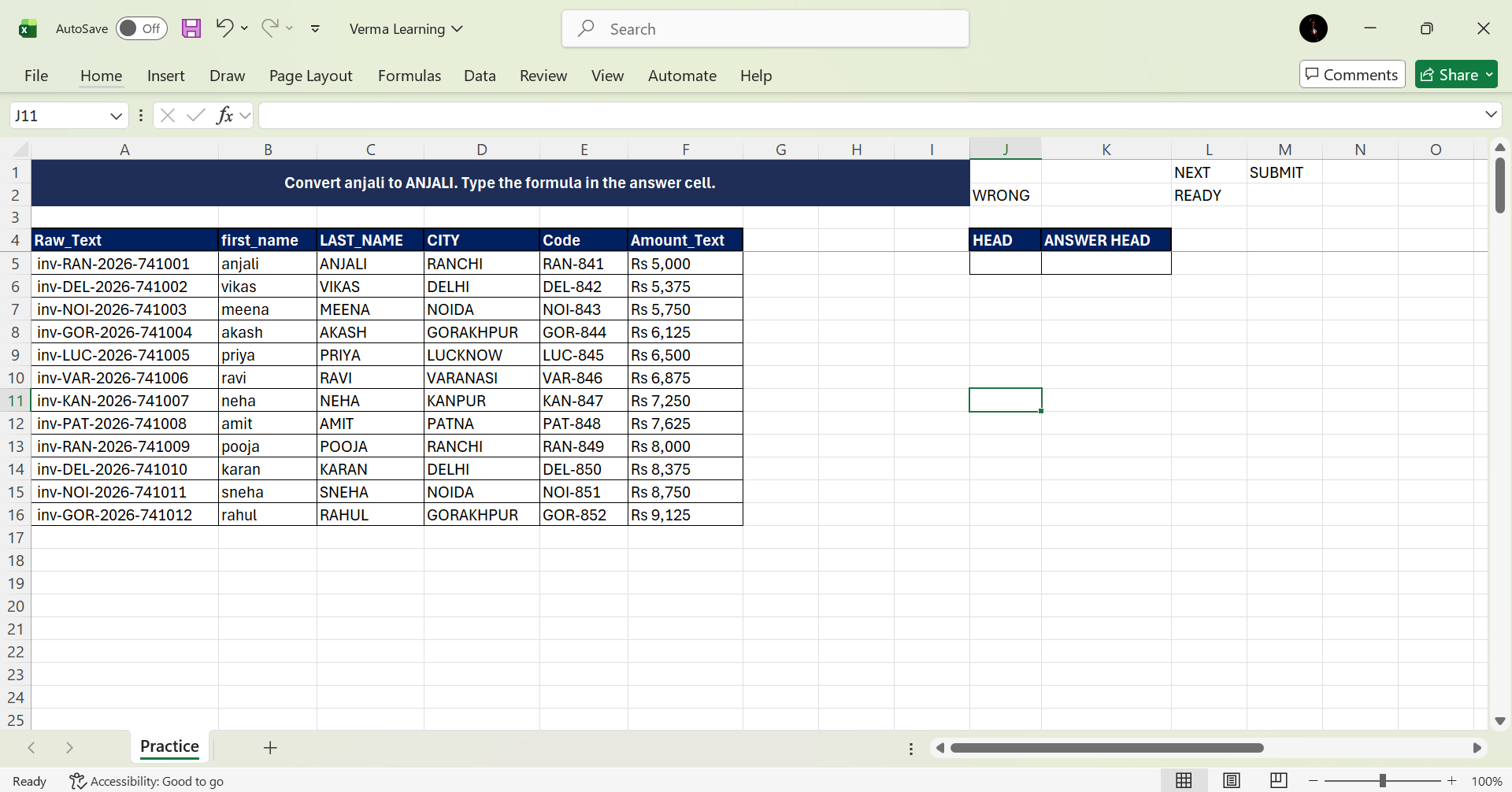
How it works
Open Excel. Click Next. Solve. Submit.
Open the workbook
Download the Excel file and open it in Microsoft Excel. Enable content if Excel asks for macro permission.
Load a question
Click NEXT to get a fresh practice question with a real dataset and a clear answer area.
Check your answer
Type your formula, click SUBMIT, and see whether your answer is correct or wrong.
Built for
People preparing for practical Excel work.
Download
Verma Learning
This is the first public practice workbook. It is intentionally simple: one Excel file, real questions, and instant checking.
- Dataset-based Excel questions
- NEXT and SUBMIT workflow
- Beginner-friendly practice
- Works inside real Excel
First time setup
Windows blocks downloaded files.
Here's how to fix it in 3 clicks.
This is a one-time step. After unblocking, the file opens normally every time.
Right-click the file → Properties → check Unblock
Go to Downloads folder, right-click the file, click Properties, tick Unblock at the bottom, click OK.
Open the file → Click "Enable Editing"
Excel opens in Protected View. Click the Enable Editing button on the yellow bar.
Click "Enable Content" → Done!
A security bar shows macros are disabled. Click Enable Content. Now you're ready to practice!
Early feedback
Help improve the first version.
For now this local page shows the form design. When published, this can connect to Google Forms, WhatsApp, or your own backend.